The gap between “it moved” and “it looks expensive” is where most AI video projects stall. Any mid-range image-to-video tool can produce motion. What separates forgettable output from content that actually gets shared, saved, or clicked is visual quality — and that comes from a handful of decisions made before and during generation, not just from picking a more advanced model.
One of the easiest upgrades is to move from pure text-to-video thinking toward a structured image-driven workflow.
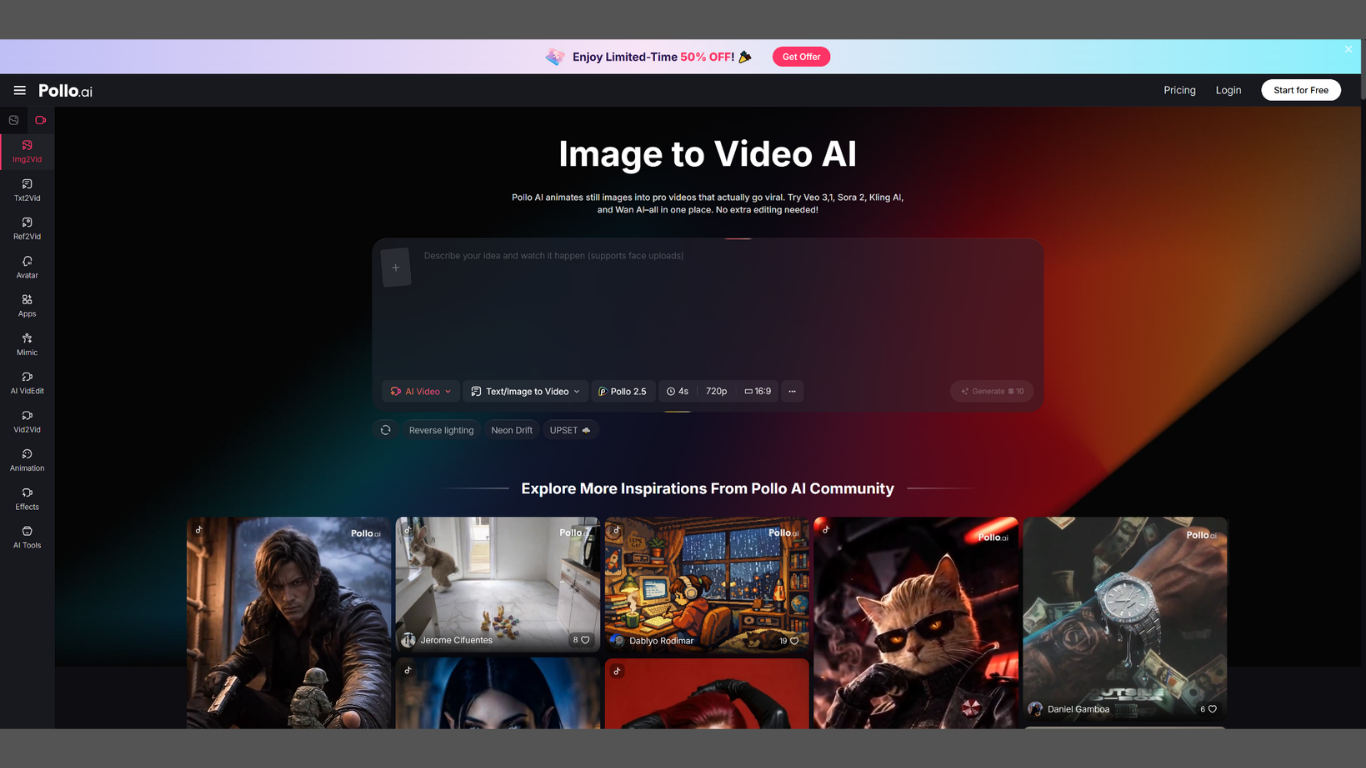
When you image to video with Pollo AI, you’re giving the model a visual anchor — a specific composition, lighting condition, and subject that the generator has to stay faithful to, rather than inventing from scratch. That constraint is actually an advantage for quality.
Why Most AI Video Feels Cheap
The most common quality issues aren’t random — they follow predictable patterns. Understanding the failure mode is the fastest way to fix it.
Flat Motion
The whole frame moves uniformly, like a slideshow transition rather than a camera move. The fix is naming a specific camera direction rather than leaving it open-ended.
Unstable Subjects
People’s faces, logos, or product details morph or drift between frames. This is caused by over-specifying motion amplitude or under-specifying what should stay still.
Generic Lighting
Output looks mid-afternoon, flat, and uninteresting because no lighting condition was specified. Lighting is the most emotionally loaded variable in any image — omitting it is costly.
No Rhythm
The clip either plays too fast or drifts without a visual pause or beat. Premium footage has hold points. Your prompt should too.
Fixing these issues doesn’t require a better tool. It requires better inputs and more deliberate prompt structure.
Best Way 1 — Start With an Image That Has Clear Depth Layers
The single biggest predictor of premium-looking output is the source image. Images with distinct foreground, midground, and background layers give the AI spatial information to work with, producing parallax and depth-of-field effects that read as cinematic. A flat, shadow-free product photo on a pure white background can be animated — but it will always look like a product photo that moved, not a scene.
If you’re selecting from existing stock, choose images with natural shadows, environmental context, or deliberate blur in the periphery. These cues are exactly what models use to infer motion direction and focal distance.
Best Way 2 — Compare Across Control Systems
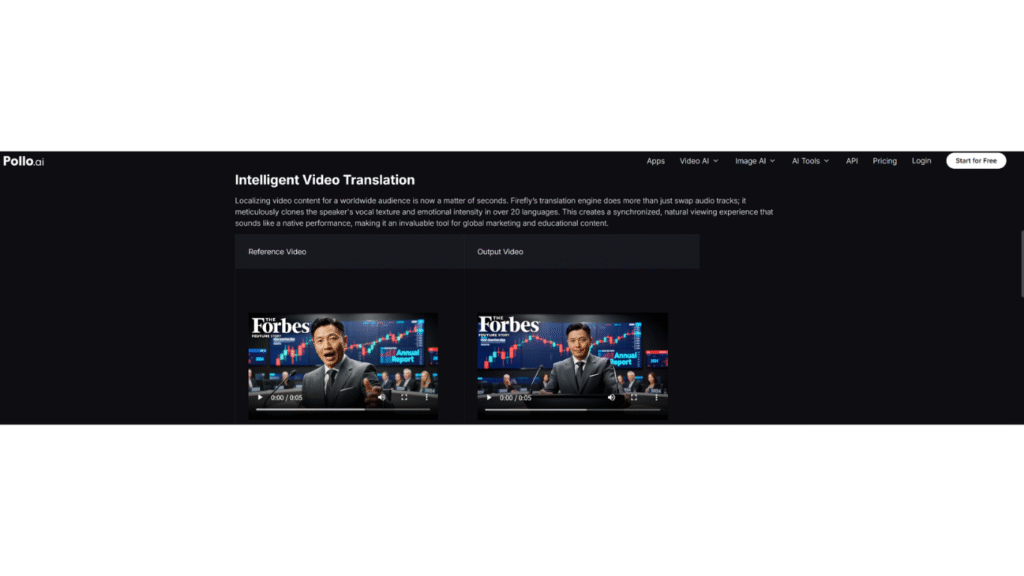
For users who want to understand what professional-grade image-to-video control systems look like, reviewing Adobe Firefly’s AI video generation is instructive — the interface surfaces control dimensions like depth analysis, camera motion styles, lighting effects, and 1080p export. Understanding what those levers are trains you to address them explicitly in prompt-based workflows, whatever tool you use.
Best Way 3 — Define a Lighting Mood, Not Just a Location
Lighting is the most emotionally loaded variable in any image, and it’s one that most users forget to specify. Compare:
- Generic: “a woman standing in a city at night”
- Better: “warm sodium streetlight from the left, deep shadow on the right, slight lens flare from background traffic”
This level of lighting description carries over into the animated output as tonal consistency. Even if the AI doesn’t execute it perfectly, the directional cue forces the model toward a more specific and visually interesting result.
In the Pollo AI image-to-video workflow, pairing a strong source image with a lighting-specific prompt is one of the most reliable paths to output that looks closer to something shot on camera than something generated by software.
Best Way 4 — Control Motion Amplitude
More motion is not more cinematic. Slow, controlled movement with brief still moments reads as deliberate; fast, constant motion reads as cheap. A useful mental model: think about what a camera operator would actually do — hold, then move slowly, then settle. Translate that into your prompt: “slow camera ease-in from right, hold center for 2 seconds, gentle drift back.”
Keeping the animation amplitude low also reduces the chance of subject distortion, which is the most obvious quality failure in AI video.
Best Way 5 — Name the Camera Move Precisely
“Cinematic” is not a camera instruction. “Slow push toward the subject with slight upward tilt” is. Every vague adjective in a prompt is an opportunity for the model to guess — and its guess will usually be the most average, least interesting option. Use specific cinematography language:
- dolly in / dolly out
- slow orbit left
- tilt up from ground level
- rack focus from foreground to subject
The more specific the instruction, the less creative latitude the model takes, and the more controlled your output will be.
Best Way 6 — Optimize for a Specific Output Context
A clip for a brand ad, a YouTube B-roll filler, and an Instagram Reel have different rhythm requirements:
- Ads: shorter, front-loaded visual punch
- B-roll: slower, ambient, continuous
- Reels: motion in the first half-second, visible hook
Generating without a target context almost always produces clips that work for none of the above.
Closing Thought
Premium-looking AI video is mostly a prompt discipline problem, not a tool problem. Choosing the right source image, specifying camera move and lighting precisely, and controlling motion amplitude are decisions that cost nothing extra — but dramatically separate results that look generated from results that look crafted. Pollo AI provides the generation capability; your inputs determine the quality ceiling.
Article received via email