
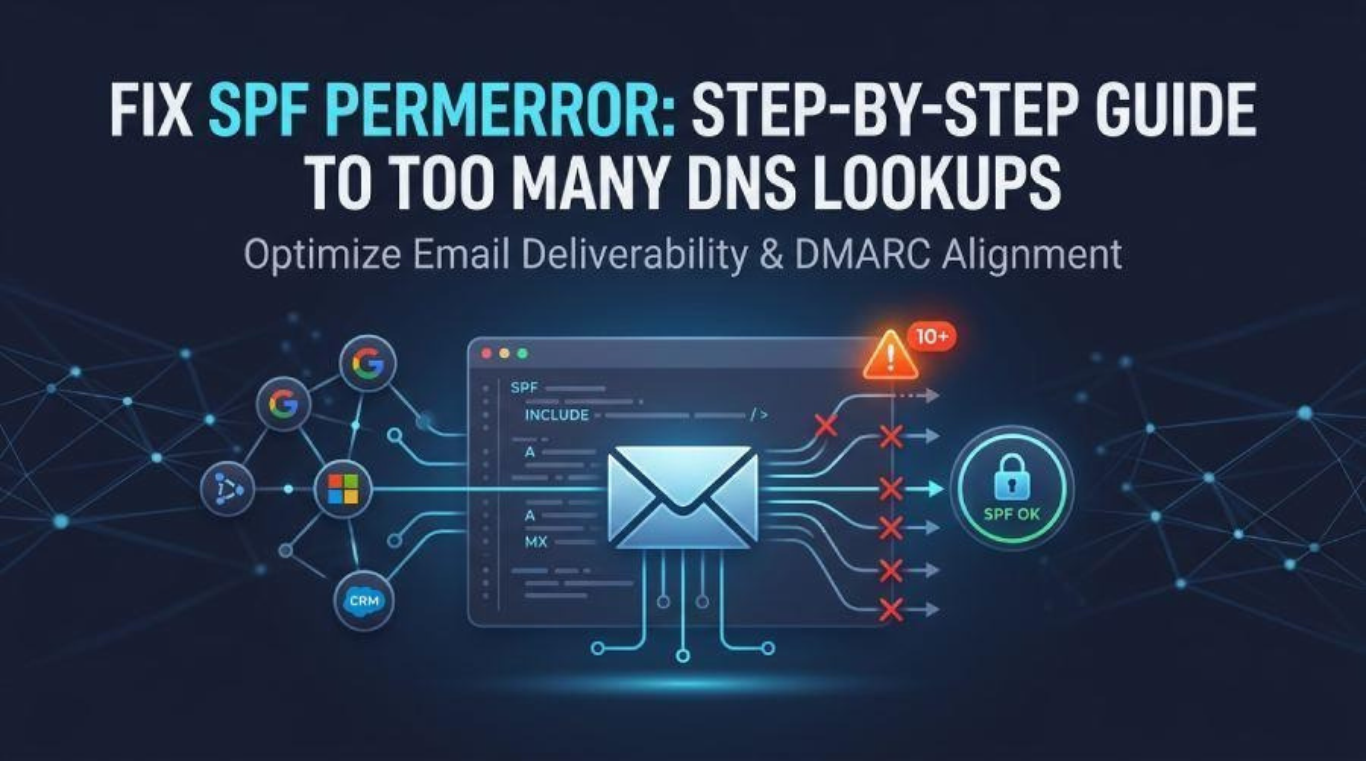
Understanding SPF PermError and Its Causes
An SPF PermError occurs when a receiving mail server encounters a permanent configuration issue while checking a domain’s Sender Policy Framework (SPF) record. One of the most common reasons is exceeding the maximum DNS lookup limit.
According to RFC 7208, an SPF evaluation allows a maximum of 10 DNS-querying terms. This restriction prevents excessive DNS requests and helps receiving servers process email authentication efficiently.
Businesses using multiple email providers, marketing platforms, and cloud-based applications can easily exceed this limit because each service may introduce additional DNS dependencies.
Which SPF Mechanisms Count Toward the Lookup Limit?
Certain SPF mechanisms require DNS queries to identify authorized sending servers. These include:
- include: References another domain’s SPF policy.
- a: Retrieves IP addresses associated with a domain.
- mx: Checks the domain’s configured mail servers.
- ptr: Performs reverse DNS lookups.
- exists: Checks whether a specified DNS record exists.
- redirect: Transfers SPF evaluation to another domain’s policy.
The include mechanism is particularly responsible for lookup problems because referenced domains may contain additional nested includes.
On the other hand, ip4 and ip6 mechanisms authorize IP addresses directly without consuming the DNS lookup quota.
For example:
v=spf1 ip4:192.0.2.10 ip6:2001:db8::/32 -all
Using direct IP authorization can reduce DNS dependencies, provided the specified addresses remain accurate.
How to Identify SPF Too Many DNS Lookups
Start by examining your published SPF record using a reliable SPF checker. A detailed SPF lookup should identify DNS-querying mechanisms, follow nested references, and highlight configuration errors.
Common problems include:
- Multiple SPF records published for one domain.
- Incorrect SPF syntax or unsupported entries.
- Invalid or unresolvable include references.
- Excessive nested DNS lookups.
- Unnecessary PTR mechanisms.
- Incorrect redirect configurations.
For example:
v=spf1 include:_spf.google.com include:spf.protection.outlook.com include:microsoft.com include:vendor.example -all
Although this record contains only four include statements, each referenced domain may introduce additional DNS queries. Therefore, the complete lookup chain must be examined before determining whether the record exceeds the limit.
Step-by-Step Solutions to Fix SPF PermError
Step 1: Remove Unnecessary Include Statements
Review every email service authorized through your SPF record. Remove entries associated with discontinued marketing platforms, outdated mail servers, or applications that no longer send messages using your domain.
Before removing an entry, confirm that the corresponding service is no longer required. Also, check whether your active providers support DKIM authentication as an alternative or complementary method.
Removing unused references is one of the easiest ways to reduce SPF lookup consumption.
Step 2: Replace Suitable Includes with IP4 or IP6
If your email provider offers stable sending IP addresses, consider replacing its include mechanism with direct IP authorization.
Example:
v=spf1 ip4:203.0.113.0/24 ip6:2001:db8:1234::/48 -all
This approach reduces DNS lookup requirements because IP addresses are specified directly.
However, regularly verify these addresses with your provider. Outdated IP ranges can prevent legitimate emails from passing SPF authentication.
Avoid using PTR unless absolutely necessary, as RFC 7208 discourages it due to performance and reliability concerns.
Step 3: Use SPF Flattening Carefully
SPF flattening replaces DNS-dependent mechanisms with their corresponding IP addresses. This can reduce lookup consumption and simplify complicated SPF configurations.
However, email providers sometimes change their sending IP ranges. Without regular updates, flattened records can become outdated and cause authentication failures.
Tools such as EasyDMARC, Safe SPF, and EasySPF can help administrators analyze and manage SPF configurations. Some providers also offer hosted SPF solutions that maintain authorization information automatically.
Best Practices to Prevent Future SPF Lookup Errors
Maintaining a simple and organized SPF policy reduces the chances of encountering another PermError.
Follow these recommendations:
- Maintain an updated inventory of all authorized email senders.
- Document every include mechanism and its purpose.
- Remove unused third-party email services.
- Review SPF records after migrating to Google Workspace or Microsoft 365.
- Consider separate subdomains for marketing and transactional emails.
- Publish only one SPF record per domain.
These practices make SPF management easier and help prevent unnecessary DNS dependencies.
Article received via email